Video tools
Freeze Frame↗
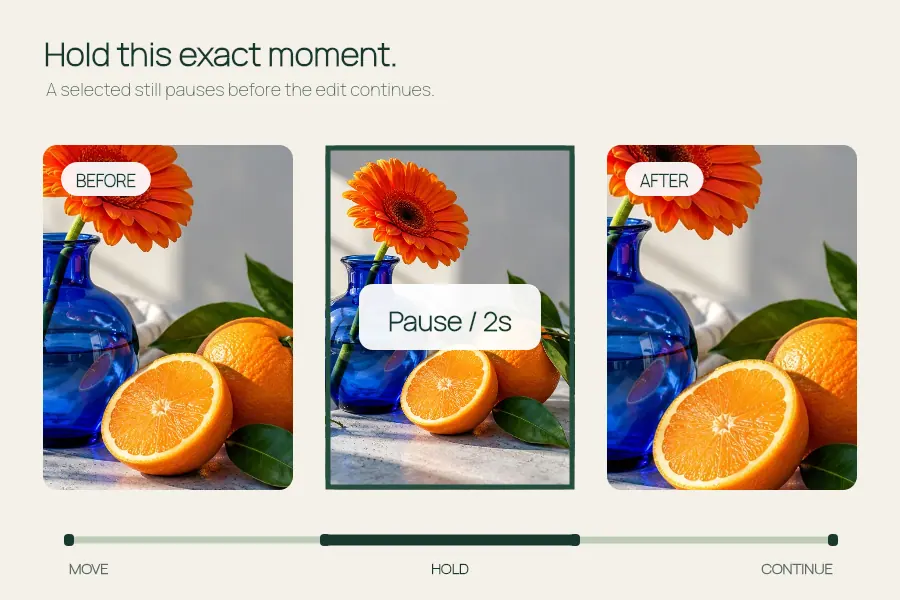
Pause a video moment with a clean hold or a skull edit overlay.
Slow a video to 0.25×, 0.5× or 0.75× and export up to 120 seconds at 540 or 1024 px wide.
Open the editor ↓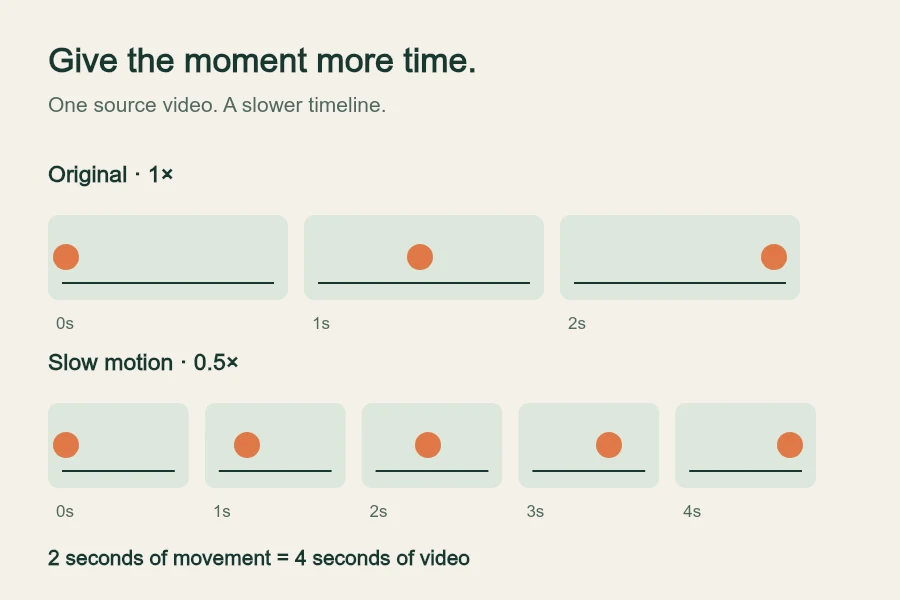
Choose your video or try the sample video.
Processed in your browser · No media upload
Export locally without an API key. The video format depends on your browser.
This example uses the first 3 seconds of the original sample. Its half-speed result is a 540 × 720 MP4 exported by this tool at 0.5×, about 6 seconds long. Both examples are silent. Choose your own output width and maximum length in the editor above.
Slow a video down in EffectPop with a fixed 0.25×, 0.5× or 0.75× playback rate, or use 1× to compare normal speed. Choose a source starting point, a maximum output of up to 120 seconds and a 540 or 1024 px width. Inspect the actual interval before exporting in your browser. This retimes existing footage without creating intermediate frames.
Try these settings in the editor ↑Add an MP4, WebM or MOV video up to 60 seconds and 40 MB. Decoding depends on your browser; try an H.264 MP4 if a file will not load. Use Try sample video to test the controls with an original moving sample. Photos are not inputs for this tool.
Choose 0.25×, 0.5×, 0.75× or 1× in Playback speed. Move Source start to the moment you want to use. At 0.5×, one second of source footage takes two seconds in the output; 1× keeps normal speed.
Choose a Maximum output length of 6, 8, 10, 12, 30, 60, 90 or 120 seconds and a 9:16, 3:4 or square frame. Output width defaults to 1024 px; choose 540 px for a smaller file. Read Source range, Actual output and the output dimensions before exporting. When the source ends sooner, the output is shorter; it does not loop back to the beginning or add a frozen tail.
Use Play and the preview timeline to inspect the slowed movement and crop. Original video audio is removed. You may add a separate permitted soundtrack up to 20 MB, played at normal speed in the export; preview stays silent. Keep the tab visible during export. A longer recording can take about as long as its output duration, and more on a slower device. Use Cancel export if needed, then play and download a completed result.
EffectPop makes an original fixed-speed slow-motion edit from your video. “New trending slowmo” and “New slow motion” can name different templates. This tool does not import CapCut templates, reproduce their exact transitions, identify their music or bundle an original soundtrack.
The result depends on the movement and frames in your source video. Slowing footage spreads existing frames over more time; this tool does not use optical flow, generate intermediate frames or apply AI interpolation. Footage recorded at a higher frame rate may work better. Try a gentler 0.75× or 0.5× slowdown if motion looks jumpy.
The available output is the remaining source duration divided by your playback speed, capped at your chosen maximum of up to 120 seconds. For example, 2 seconds remaining at 0.5× produces 4 seconds, even if the maximum is 60 seconds. To make a 90-second output at 0.25×, you need at least 22.5 seconds remaining in the input. Move Source start earlier or use a longer input to include more footage; inputs are limited to 60 seconds.
Original video audio is removed. An optional separate soundtrack stays at normal speed in the export; the editing preview is silent. Download MP4 or WebM according to browser support, at 24 fps. Width defaults to 1024 px, with a 540 px option; height follows your chosen aspect ratio and is rounded to an even pixel count. The editor shows the actual dimensions. A larger output canvas does not recover detail missing from the source. Selected media is processed locally without uploading it to EffectPop.
Start with the original moving sample or add your own video. Set the speed and source range, preview the motion and export in the actual format supported by your browser.
Pause a video moment with a clean hold or a skull edit overlay.
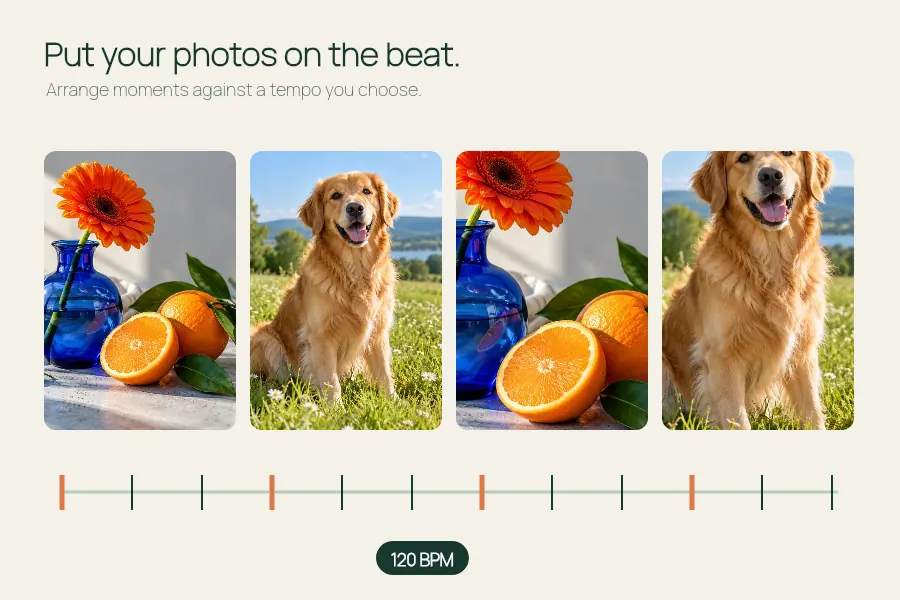
Time a photo edit to the BPM you choose.

Make a dog photo video or pet slideshow with your photos, a title and optional music.
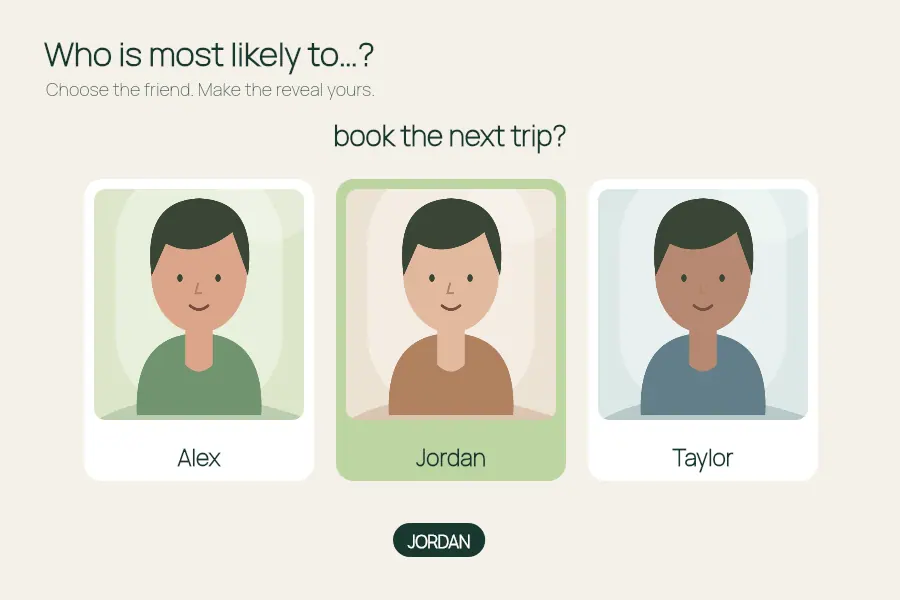
Make a most likely to video: add friends, ask a question and choose who to reveal.