Make a glow-up edit with your before and after photos
Show the change you already captured.
A glow-up edit can show a real before-and-after change: a room makeover, an outfit, a drawing or personal progress. In EffectPop, arrange two existing photographs in Collage for a still comparison, or use Beat Sync for a short photo montage. These tools arrange your media; they do not generate a transformed face or body.
Make a side-by-side glow-up comparison
- Choose the before and after. Use a similar camera angle and crop so viewers can understand the change. Keep the pictures in before-then-after order.
- Open Collage and add both images. Select two columns. Choose the cell proportions, width, gap and background.
- Check the crop. “Contain entire image” keeps the full picture visible. A fill option crops each image to its cell; inspect details near the edges.
- Download the PNG. Collage creates a still image. If you need a video, use the separate montage workflow below.

Make a video version with manual timing
Add the before and after photos to Beat Sync, choose 9:16, 3:4 or 1:1 and select a 6–12 second length. Enter the BPM, adjust shake and add one shared title. The two pictures will cycle through the edit; this is not a one-time morph or a generated transformation.
You can add your own soundtrack up to 20 MB. Beat Sync does not identify a song, automatically detect its beats or import music from a template. Preview the movement, export, then listen to the downloaded result.
Try the photo montagePhoto styling and real progress are different
If you want a visual treatment, try Duotone or Film Grain. Name the treatment when you share a comparison so it is clear whether you are showing an edit or a change captured in two different photographs.
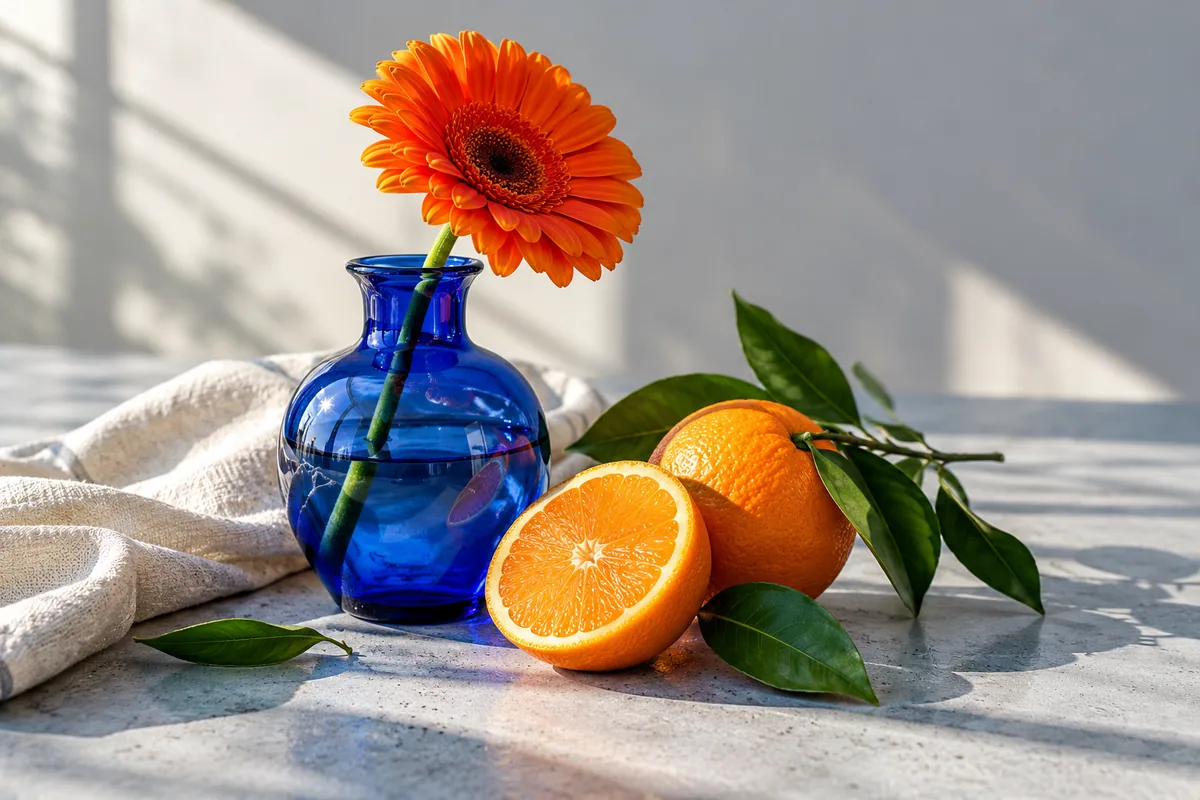
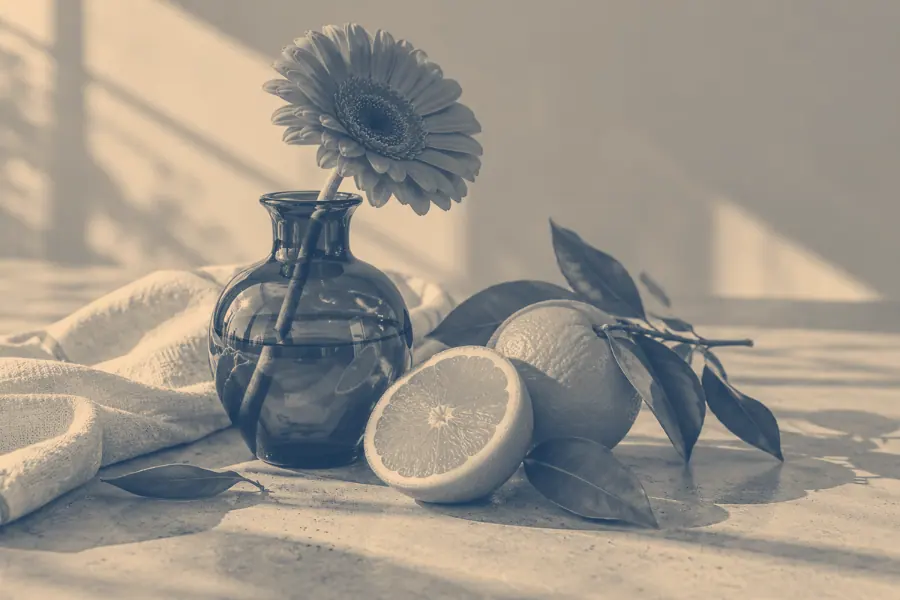
This example changes the photo’s colour treatment. It does not depict a person’s transformation.
What if I searched for the GLOWUP template?
“GLOWUP” can be the title of a particular template or a description of the before-and-after idea. The workflow here is an original comparison using your existing photos. For a specific CapCut version, check the original GLOWUP listing rather than assuming that every template with this name uses the same effects or music.
Before-and-after edit questions
Can EffectPop create my “after” picture?
No. Bring both photographs yourself. The current tools do not provide AI beauty transformations, face replacement or body changes.
Does this turn a low-resolution photo into HD?
No. A larger collage canvas or a resize does not recover missing detail. The video tools export at 540 pixels wide and 24 fps.
Can I make a paused highlight instead?
Use Freeze Frame to hold a chosen moment from one video. The Skull Edit guide shows the optional manually positioned skull graphic.
Making a couple memory sequence? Try the six-photo “It’s you, me, us” story, or compare styles in the Trend Edit guide.