Image editing
Crop Image↗
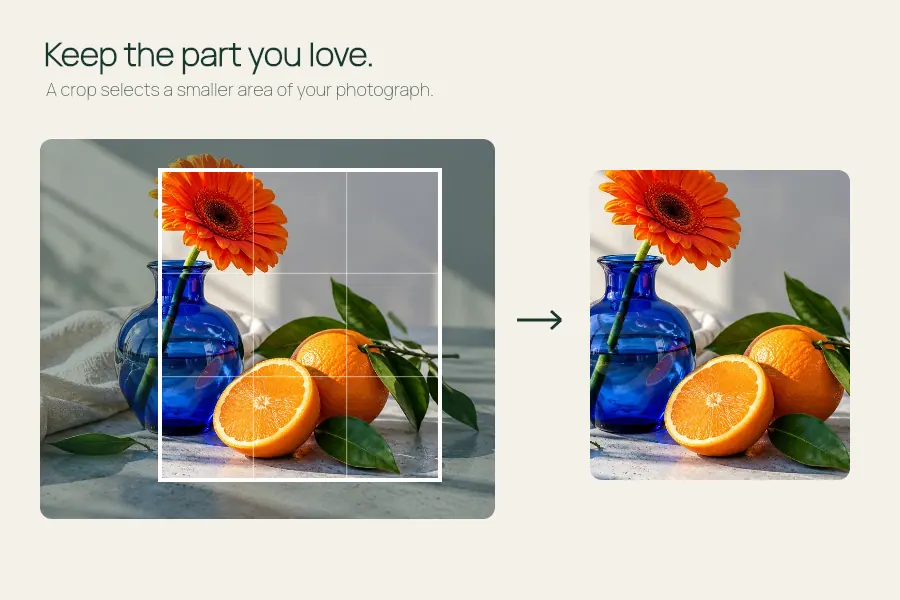
Keep the part of a photo that tells the story.
Cut out a portrait, product or pet and download a transparent PNG in your browser.
Open the editor ↓
A well-lit photo with one person and visible space around them works best.
Up to 12 MB and 24 megapixels. PNG output is up to 2,400 pixels on the longest side.
Processing runs on this device. The first conversion downloads about 18 MB from EffectPop.
Your photo appears here.
Your cutout appears here.
Select Portrait for one person, or Products and pets for one distinct subject against a simple background. The editor estimates the subject edge and uses it as an alpha channel so you can place the cutout over another background.
Open the editor ↑Open a PNG, JPEG or WebP. For a person, choose a portrait with visible shoulders and room around the hair. For a product or pet, use a clean background and leave space around the outline.
The first conversion downloads the model for the selected subject type and the shared runtime. Inspect hair, fur, clear glass, gaps and dark edges at the intended display size. If the mask cuts into the subject, try a clearer photo.
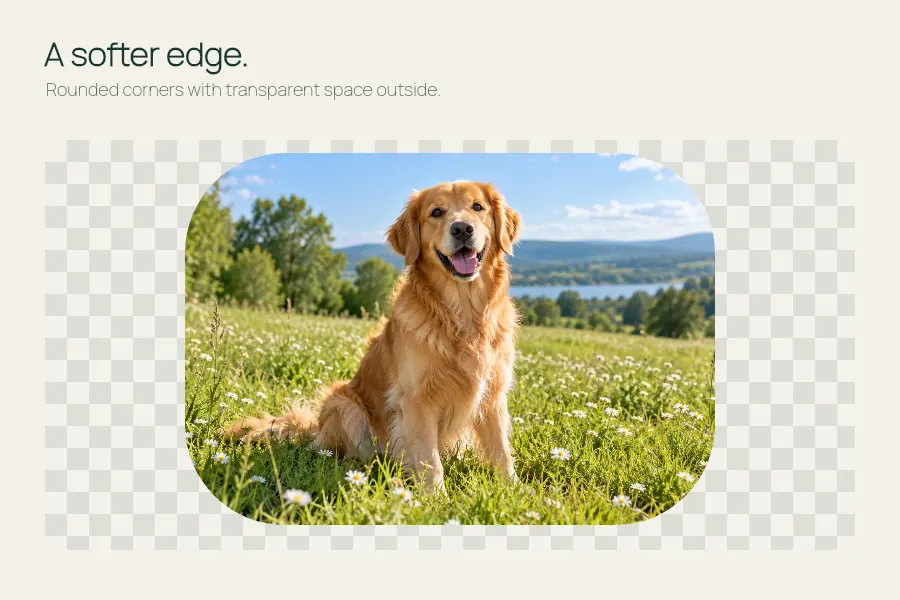
Open the download over both a light and a dark background. A checkerboard in an image editor usually indicates transparency. A white background in a preview app can be the app’s display color.
Up to 12 MB and 24 megapixels in, up to 2,400 px on the longest side out. The models work best with one prominent subject. Groups, transparent surfaces and busy edges can give unreliable results.
Use the PNG from this editor. If you later convert it to JPEG, choose the color that should fill transparent pixels.
This editor accepts still portraits. Photo to Video uses the same subject separation on one portrait and adds a short camera move.