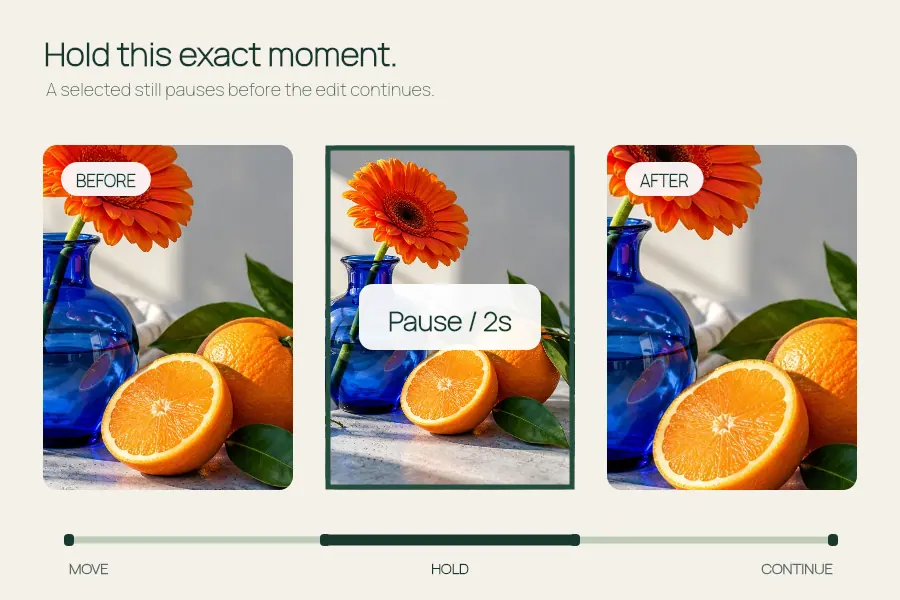
Video tools
Freeze Frame↗
Pause a video moment with a clean hold or a skull edit overlay.
Turn a short MP4 or WebM clip into a looping GIF. Choose the start, length, size and frame rate in your browser.
Open the editor ↓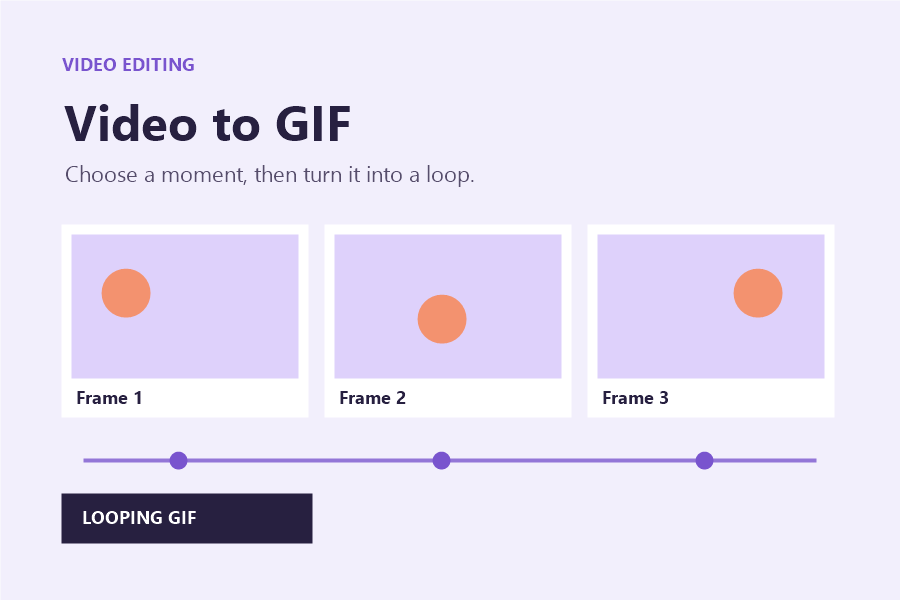
Choose a video to preview the section you want to loop.
Choose a local MP4 or WebM and turn a short part of the clip into a silent, looping GIF. Start with the action you want viewers to see on each loop.
Open the editor ↑Try the included sample or pick an MP4 or WebM your browser can decode. Use a source up to 40 MB and 60 seconds long.
Set the start time and a 1–8 second length that fits the available clip. Start just before the movement and keep the loop short.
Choose 240, 360 or 480 px for the longest side and 6, 8 or 10 frames per second. Download the GIF and play it through a few loops. If it is too large for the destination, shorten the range or use a smaller size or lower frame rate.
The GIF keeps the source proportions and never enlarges a smaller clip. It loops without sound. Exports have a 24 MB limit. If the result reaches that limit, shorten the clip or reduce its size or frame rate.
GIF uses a limited color palette, and the tool samples fewer frames than a typical video. Choose a shorter, simpler motion or export video if smooth gradients and motion are important.
Pause a video moment with a clean hold or a skull edit overlay.
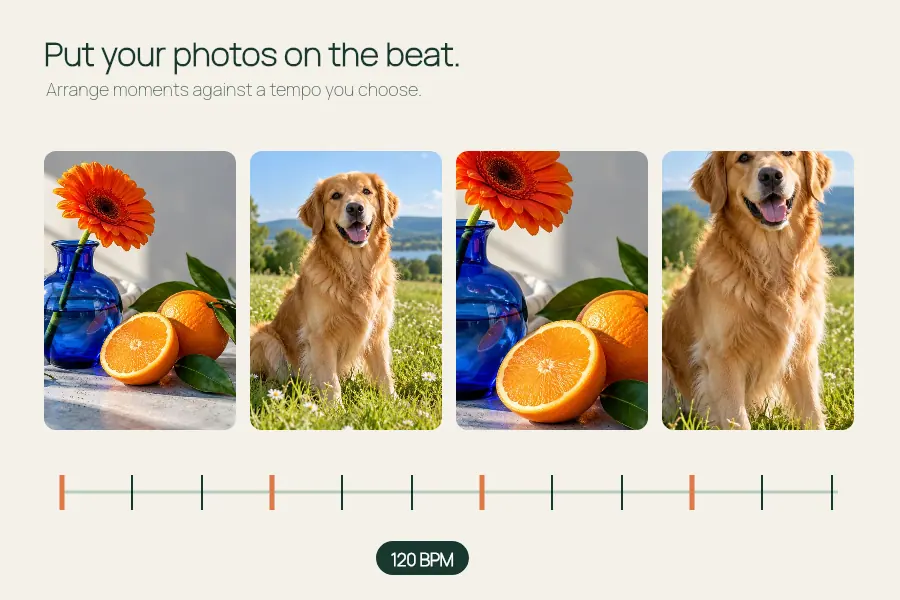
Set or estimate a steady BPM for a photo montage and export at 540 or 1080 px wide.
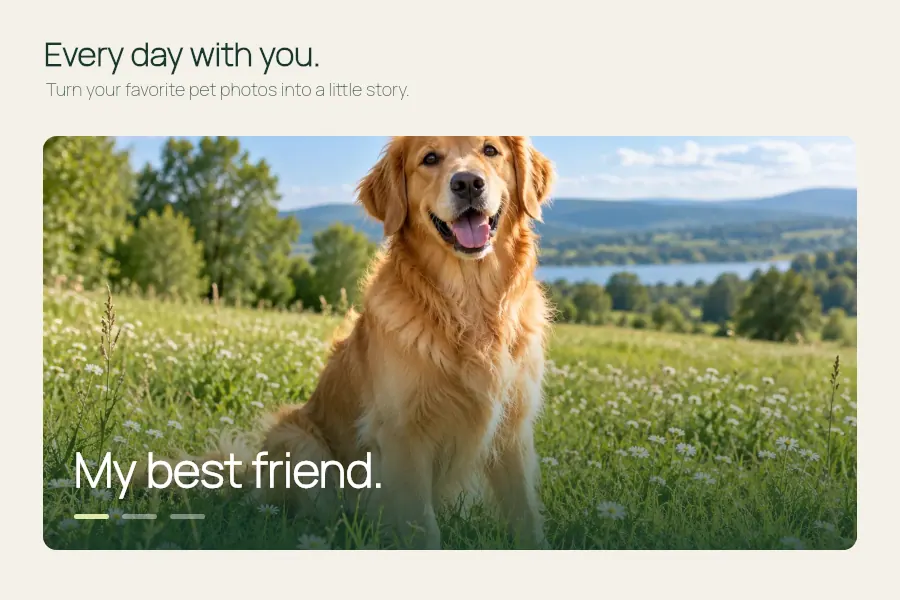
Make a dog photo video or pet slideshow with your photos, a title and optional music.
Make a most likely to video: add friends, ask a question and choose who to reveal.