Video tools
Freeze Frame↗
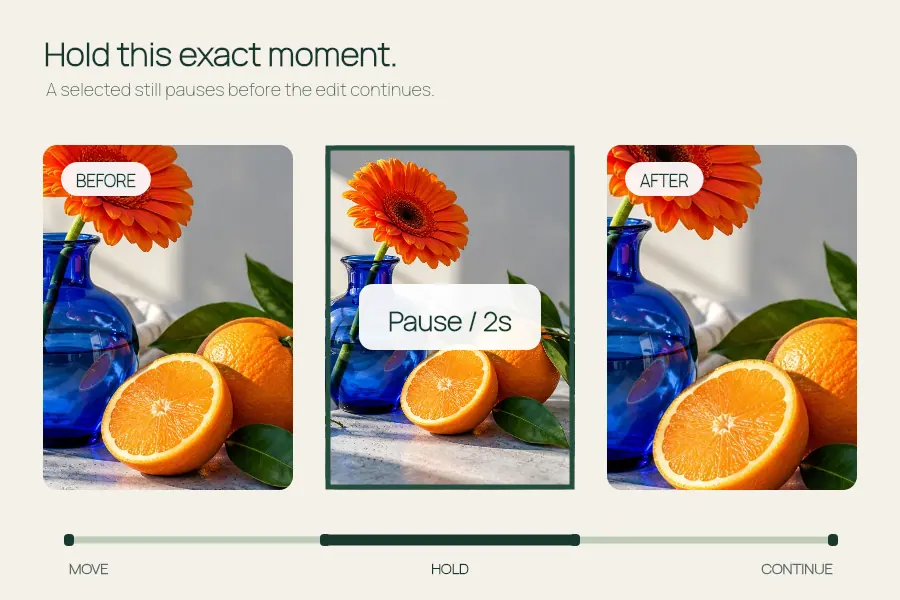
Pause a video moment with a clean hold or a skull edit overlay.
Set a smaller frame size and bitrate, then compare the original and exported file sizes.
Open the editor ↓
Choose a video to see the original and compressed file sizes.
Choose an output format that the destination accepts, set a smaller long edge and lower the video bitrate. Keep the original until you have checked the exported file on the device or service where it will play.
Open the editor ↑Choose an MP4, MOV or WebM the browser can decode. Confirm that the clip opens and note the original file size and dimensions before changing the settings.
Try the 1280 px long edge and Balanced bitrate first. Use 960 or 640 px when the video will play in a small space. Leave audio on when speech or music matters. For a silent clip, switch it off before exporting.
Compare the measured sizes, play the export and check fast movement, small text and the primary audio. Re-encode from the original when you want to try another combination, because each extra lossy encode can remove detail.
The source can be up to 60 MB and 60 seconds, with up to the pixel count of a 3840 × 2160 frame. Output is capped at 48 MB. Smaller clips stay at their current dimensions. Exact file size and codec availability depend on the input and browser.
The original may already use a low bitrate or an efficient codec. Try a lower bitrate or smaller dimensions, then compare the result again.
Start with MP4 if the destination requires it. Use WebM when supported by both the browser encoder and the playback destination.
Pause a video moment with a clean hold or a skull edit overlay.
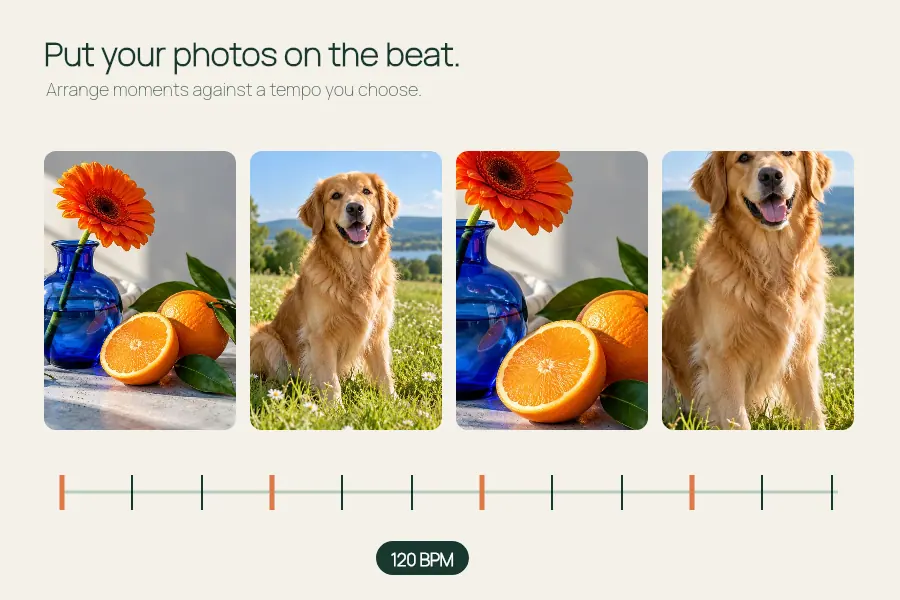
Set or estimate a steady BPM for a photo montage and export at 540 or 1080 px wide.

Make a dog photo video or pet slideshow with your photos, a title and optional music.
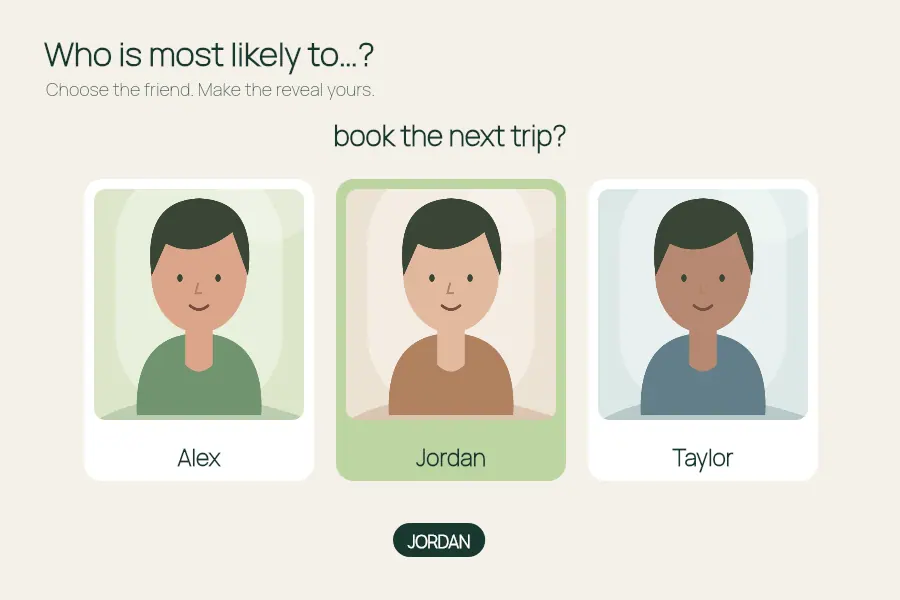
Make a most likely to video: add friends, ask a question and choose who to reveal.